Bazaart AI Photo Editor Design
- 4.6
- Rating
- 5.00M
- Installs
- Free
- Price

 Analysis by App-foxy
I opened Bazaart AI Photo Editor Design with a very ordinary task in mind: turn a few unremarkable phone photos into something I could actually share. One image needed a cleaner background, another had a distracting object, and I wanted the final result to look designed rather than like a quick filter had been applied. That is the kind of situation where this Art & Design app from Bazaart Ltd. makes sense. It combines photo editing, background removal, object cleanup, and layout work in one place instead of making me pass the files between several separate tools.
The first impression is less about choosing a single effect and more about building a composition. I can bring an image into the workspace, isolate its subject, remove unwanted visual clutter, and then arrange the result with other elements. That makes it useful for social posts, small promotional graphics, invitations, mood boards, product images, and personal collages. I would not describe it as a replacement for a full desktop design suite, but I do find it more purposeful than a basic camera editor when the goal is to create a finished visual.
From an ordinary photo to a finished design
I find it helps to decide what the finished image needs to communicate before I start editing. That keeps background removal and cleanup in service of the design, rather than turning the process into a string of effects. Once the subject is ready, I can judge whether it belongs in a simple post, a collage, or a more focused product-style graphic.
You May Also Like

 Blood Strike: 2.5 Anniversary
Blood Strike’s Loadouts Turn Every Drop Into a Tactical Gamble
A close look at Blood Strike’s custom loadouts: how fast access to signature weapons reshapes its battle royale rhythm, rewards preparation, and narrows the gap between fights.

 Pandora - Music & Podcasts
Pandora’s Music Is Easy to Start, but Harder to Recover
Pandora’s strength is its low-effort path from a seed to a station. Its weak spot is how much confidence it asks you to place in connection, setup, and quiet recovery.

 8 Ball Pool
 Is Built on Rivalries, Rematches, and Routine
A close look at the rivalries, rematches, shared routines, and unanswered safety questions that turn a quick pool match into a persistent mobile community.

 Samsung Music
’s Quiet Strength Is Playing What You Already Own
Its reach comes less from spectacle than from dependable access to a personal library. That simplicity is both the app’s strongest retention engine and its ceiling.

 AccuWeather: Weather Radar
AccuWeather Review: A Quick, Clear Forecast for Everyday Decisions
For everyday plans, the best forecast is the one you can understand quickly. AccuWeather makes rain timing, radar, and local conditions easy to act on, with a few trade-offs.

 Hill Climb Racing
Why Hill Climb Racing Still Turns Crashes Into One More Run
A tiny car, a bumpy hill and one more upgrade: Hill Climb Racing keeps resurfacing because its simple chaos makes every near-miss feel personal.
More From Our News Desk



Starting with the right source image
The quality of the starting photo matters more than I expected. Bazaart can help separate a subject from its surroundings, but a clear outline, good contrast, and reasonable lighting give the editing tools a much easier job. When I began with a well-lit portrait against a fairly simple wall, the cutout needed only a little attention. A busy image with hair, thin straps, and overlapping objects required more patience. This is an important distinction: the app can speed up the process, but it cannot make every difficult edge perfect automatically.
For a practical workflow, I first decide what the image is supposed to become. If I am making a product-style post, I leave enough empty space around the item for text and supporting graphics. If I am creating a collage, I look for photos with different shapes and visual weights. That small planning step prevents the common mistake of removing a background successfully, only to discover that the subject has no comfortable place in the final layout.
The app is free to start, which makes experimenting easy. Its content rating is Everyone, so it is approachable for a broad audience, although the creative decisions still require some judgment from the person using it. The current version is 4.0.0 and it runs on Android from version 8.0 onward. I appreciate that the basic entry point does not demand a complicated setup before I can test whether the editing style suits me.
Removing a background without losing the subject
Background removal is one of the most useful parts of the workflow. I use it when I want a person, object, or pet to sit on a different color or image. The practical advantage is not simply that the background disappears; it is that the isolated subject becomes a reusable piece of a larger design. I can resize it, move it, layer it over another image, or use it as the focal point of a poster-like composition.
My advice is to inspect the outline before moving on. Zooming in around hair, fingers, plant leaves, glasses, and similarly narrow details can reveal small pieces of the old background that are easy to miss at normal size. Those fragments may not matter on a light background but can become obvious when the subject is placed over a dark color. I also check the feet and lower edges of objects, because a rough cut there can make an otherwise convincing composition feel pasted on.
This is where Bazaart feels more flexible than a typical one-tap filter app. A filter changes the mood of the entire photo; a cutout changes how the image can be used. The trade-off is that the second task asks for more visual checking. Anyone expecting every difficult edge to be flawless without inspection may find the process less automatic than the store summary suggests.
Cleaning an unwanted object
The object-removal workflow is especially handy for everyday photos. I used it for the sort of distraction that normally makes me abandon an otherwise good picture: a small item near the subject, a mark in the background, or something that pulls attention away from the main point. Removing one detail can be more valuable than applying several decorative effects, because it improves the image before the design stage begins.
I treat this tool as a cleanup assistant rather than a magic repair button. It works best when the surrounding area is visually consistent. A plain wall, a broad patch of pavement, or a simple tabletop gives the editor enough context to produce a believable result. Repeating patterns, text, faces, and complicated edges are more sensitive. After removing something, I look at the nearby texture and lines instead of judging only the erased spot. A repair can seem fine when viewed closely but look strange when the whole image is displayed.
That check is also useful before handing the image to the next stage. If I build a layout around a flawed cleanup, I may not notice the problem until the end, when changing the source forces me to reposition other elements. My preferred order is therefore simple: clean the original first, isolate the subject second, and design the composition only after both edits look acceptable.
Building the composition instead of stopping at the edit
Once the main image is ready, the app becomes a small design workspace. I can think in layers: background, main subject, secondary images, and text or decorative elements. The important benefit is control over the relationship between those pieces. A portrait can be placed on a solid background, a product can be surrounded by supporting pictures, and several unrelated snapshots can be turned into a coherent collage.
I find that restraint produces better results here. It is tempting to add every available visual treatment after spending time on the cutout, but a clean background and one strong subject often communicate more clearly than a crowded arrangement. I usually establish the largest element first, then place smaller images around it, and only afterward decide whether the design needs extra decoration. This keeps the workflow focused on the intended message instead of on collecting effects.
A useful non-obvious trick is to use the removed background as a design decision, not merely as something to discard. If the original setting had a helpful color, texture, or shadow, I may recreate that feeling with a simpler backdrop rather than choosing a completely unrelated one. The subject then looks more naturally placed. On the other hand, if the original background was the reason the photo failed, a bold replacement can make the improvement obvious.
Handling the handoff between editing and design
The handoff from photo correction to layout is where I notice the app’s main strength. I do not need to finish a cutout in one app, save it, open a separate collage tool, and then search for another object-removal utility. Keeping those steps together makes small projects much less fragmented. It also encourages experimentation: I can try a different placement or background without rebuilding the whole file elsewhere.
There is still a mental handoff for me as the user. Photo editing asks, “Is this image clean?” Design asks, “Does this arrangement communicate something?” Those are different questions, and Bazaart does not remove the need to answer either one. A technically clean cutout can still be too small, poorly balanced, or surrounded by competing details. I get the best results when I pause after each stage instead of treating the first acceptable edit as the finished product.
For a small business owner, this can shorten the path from a quick product photo to a simple announcement graphic. For a student, it can turn several references into a visual presentation element. For a casual user, it can make a birthday collage or travel post without learning a complex professional program. The common thread is a project that begins with images and ends with a composed visual, not just a corrected photograph.
A realistic everyday workflow
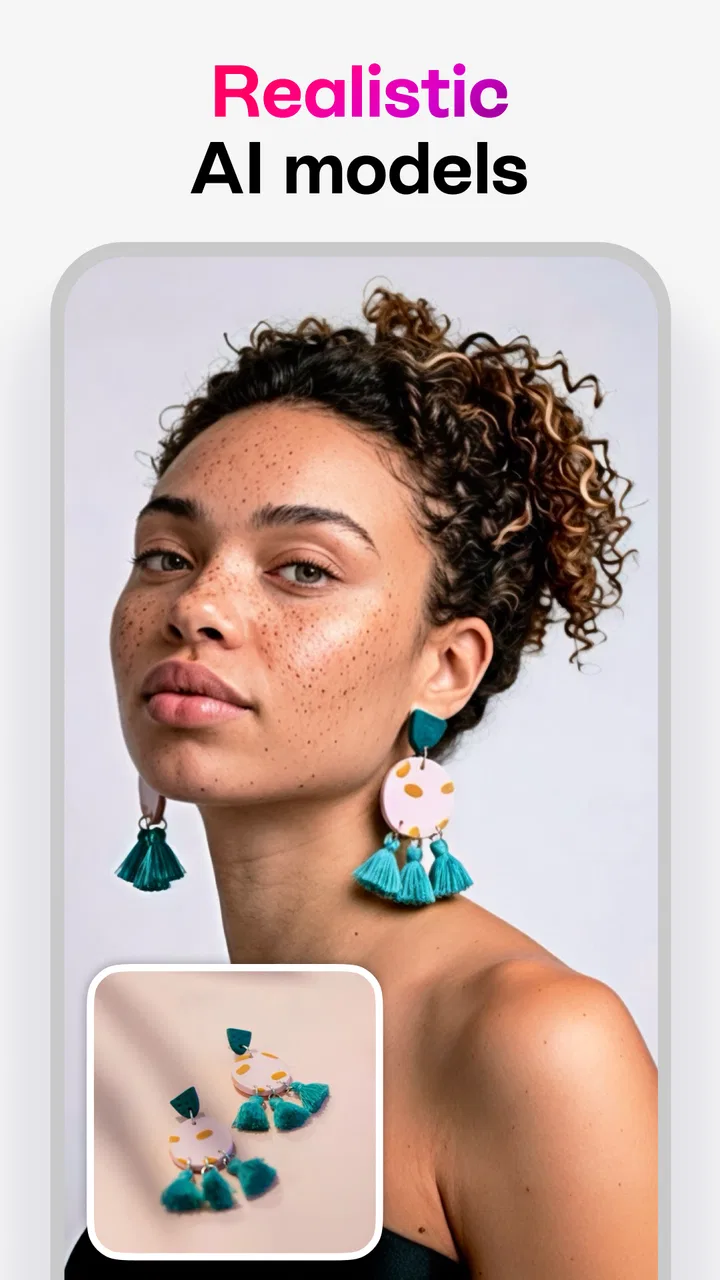
Imagine I have taken a phone photo of a handmade item on a cluttered kitchen table and want to post it in a local selling group. I would begin by removing the distracting objects around the item, then isolate the item from the table if the edge is clear enough. Next, I would place it on a calm background with enough contrast to show its shape. I might add a second photo as a supporting detail, keeping it smaller so the main item remains the focus.
Before considering the design complete, I would inspect the outline at a larger view, check whether the object-removal repair has repeated any strange texture, and make sure text or decorative elements do not cover important details. I would also compare the result with the original photo. If the new version looks more polished but less truthful, I would simplify it. For a product image, clarity is more important than making the object look dramatically different from reality.
This scenario shows why the app is more than a background eraser. The value comes from the chain of actions: repair the source, separate the subject, arrange the pieces, and review the outcome as a single design. If I only wanted brighter colors or a quick crop, a simpler photo editor would be faster. If I wanted to create a visual from several edited elements, Bazaart would be the more natural fit.
What the finished result does well
The strongest result is a visual that looks intentionally assembled. The app helps me move from “I have a photo” to “I have a graphic with a purpose.” That difference is particularly noticeable when the original image has a distracting environment or when several photos need to live together. The ability to combine cleanup and composition means I can make a rough source image useful without first becoming skilled in multiple specialist tools.
It also works well for quick variations. I can test a light background, a darker background, or a collage arrangement and judge which one gives the subject the clearest presence. That trial-and-comparison approach is more practical than committing to one edit in a separate app and discovering later that the whole layout needs to change. I value this flexibility more than a large collection of decorative options.
The app’s popularity gives it a reassuring starting point: it has a 4.7 average from around 68 thousand ratings and has passed 5 million installs. Those figures do not guarantee that every workflow will feel effortless, but they do suggest that the combination of editing and design has reached a substantial audience. In my own use, the appeal is easy to understand because the tools serve a connected purpose rather than feeling like unrelated additions.
Where the workflow breaks down
The first limitation is precision. Automated background removal and object cleanup can save time, but difficult images still need scrutiny. Fine hair, transparent materials, shadows, and objects that blend into the background are not ideal candidates for a completely hands-off process. If the final image is going to be printed large or used in a professional campaign, I would inspect every important edge and consider a more specialized editor when exact masking is essential.
The second limitation is that the app can feel broader than necessary for a tiny task. If I only need to straighten a photo, adjust its brightness, or crop it for a message, opening a design-focused workspace may add unnecessary steps. A basic phone editor is quicker for those jobs. Bazaart earns its place when I need several operations to lead toward a composed result.
There is also a learning curve caused by creative freedom. Having the subject, background, and supporting elements available in one workspace is powerful, but it means I must make choices about scale, spacing, contrast, and hierarchy. Users who prefer a single automatic style may find that the app asks them to participate more actively. I see that as a benefit for design work, but it is still a real trade-off.
The free starting point is helpful, yet in-app purchases range from $1.49 to $71.99 per item. That wide range makes it sensible to explore the free experience carefully before paying for anything. I would decide based on how often I create designs and whether the available workflow actually saves me time. Someone making one occasional collage may be perfectly satisfied without spending, while a frequent creator may find additional paid options easier to justify.
Who should use it and who should choose something else
I recommend it to people who regularly turn photos into shareable designs. It is a good match for social content, personal announcements, simple product presentations, collages, and visual projects where removing a background is only one step. It is also suitable for users who do not want to maintain a collection of separate editing apps and prefer one place for cleanup and arrangement.
I would point photographers toward a more specialized tool when color correction, raw-file control, detailed masking, or print preparation is the main concern. I would point someone making complex vector illustrations toward dedicated design software. And if a person wants only quick camera adjustments, a standard mobile editor will probably feel lighter and faster.
The app is particularly useful for people willing to review their work. Its automatic assistance can get a project moving, but the final quality depends on checking edges, repairs, spacing, and visual balance. That combination of automation and personal judgment is the central trade-off: it reduces repetitive work without turning design into a completely push-button process.
My final take after following the full process
The best reason to choose Bazaart is the connected workflow from messy photo to usable design. I can correct a source image, remove an unwanted object, separate a subject, and arrange the result without repeatedly exporting files between unrelated apps. That makes it practical for everyday creative jobs where speed matters but a plain filter is not enough.
I would keep expectations realistic about difficult edges, complicated repairs, and the amount of judgment required to make a layout look good. The app is not the right answer for every image-editing task, and its paid options deserve a deliberate look before purchase. Still, for an accessible Art & Design app that brings AI-assisted photo editing and composition into the same workflow, I find it genuinely useful.
Bazaart AI Photo Editor Design is free, rated for Everyone, and comes from Bazaart Ltd. Its 4.0.0 release supports Android 8.0 and newer, while the same practical idea remains clear throughout the experience: start with an imperfect image, improve the parts that distract, and then give the remaining pieces a clear visual role. If that is the kind of result I need, I would recommend giving it a try before reaching for a heavier desktop alternative.
FAQs for Bazaart AI Photo Editor Design
01What is Bazaart AI Photo Editor Design and what can it do?
Bazaart AI Photo Editor Design is a versatile app that allows users to create stunning photo edits and graphic designs with ease. It offers tools for cutting, layering, and enhancing images, along with AI-powered features for automatic background removal and smart object selection. Perfect for both beginners and professionals, Bazaart streamlines the creative process.
02Is Bazaart AI Photo Editor Design free to use?
Bazaart offers a free version with basic features that allow users to perform simple edits. However, for advanced tools and capabilities, such as high-quality exports and additional effects, users may need to subscribe to the premium version. This subscription unlocks the full potential of the app for more intricate designs.
03What devices are compatible with Bazaart AI Photo Editor Design?
Bazaart is available for both Android and iOS devices, making it accessible to a wide range of users. It requires a device with a modern operating system to ensure smooth performance and access to all the latest features. Always check the app store for the most current compatibility information before downloading.
04How does Bazaart ensure the quality of edited images?
The app leverages advanced AI technology to maintain high-quality image outputs. Its tools are designed to enhance photos without losing resolution, ensuring that edits look professional and crisp. Additionally, Bazaart supports high-resolution exports, which is essential for printing and professional use.
05Can I use Bazaart for professional design projects?
Yes, Bazaart is equipped with a range of tools suitable for professional use. It supports high-resolution exports, layers, and a variety of design elements that make it ideal for creating marketing materials, social media content, and more. The app's intuitive interface also allows for efficient workflow management.
Pros
- Intuitive interface for easy navigation.
- Wide range of editing tools available.
- High-quality output for professional results.
- Seamless integration with social media.
- Regular updates with new features.
Cons
- Subscription required for premium features.
- Occasional app crashes reported by users.
- Limited features in free version.
- High battery consumption during use.
- Requires internet connection for full functionality.

Bazaart AI Photo Editor Design
Gallery